Creating and Configuring Tasks
PeopleFluent Recruiting allows you to create and manage tasks right in the application. Tasks are available both globally, for general to-do items, and at the candidate and position levels, for more specific tasks. The process for creating tasks is similar, whether you are creating general tasks or tasks that are specific to candidates or positions. The exception is the location from which you will add the task.
For information about managing tasks you have created, and managing tasks assigned to you, see Managing your Tasks.
 Video: Creating and Configuring Tasks
Click here to view the video full screen.
Create a New Task
To create a new general task:
- Click Tasks in the left sidebar.
- Click the add button
 located above the task list.
To create a new position task:
- Open the appropriate position.
- Click Tasks in the top-right menu on the page.
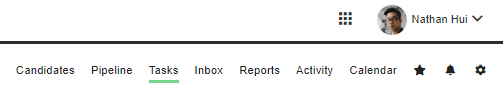
- Click the add button located above the task list.
To create a new candidate task:
- Open the candidate's profile.
- Click Tasks at the top of the hiring team actions section.

- Click +Add Task.
Configure the Task Details
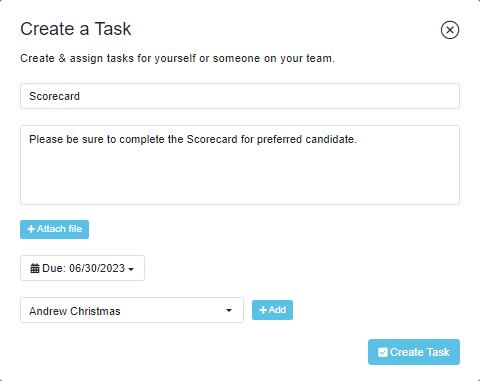
- In the Task name field, enter a name for the task.
- Enter a description for the task in the description field (optional)
- If you would like to attach a document to the task, click +Attach file and select a file from your local system. You can attach multiple documents. Simply repeat this step for each file.
- Select a due date in the Choose a due date field.
- Assign one or more users to the task.
- Click the Who should this task be created for? drop-down field.
- Select a user from the available options.
- Click +Add.
- Repeat these steps to assign additional users.
- Click the assignee drop-down field, select a user from the options and click Add. You can select multiple users. Simply repeat this step for each user.
- Click Create Task.
Editing or Deleting Tasks
To edit an existing task:
- Access the task list and click the appropriate task to open it.
- Click the more button
 and select Edit.
 - Make changes and click Save Task.
After you have saved your changes, the assignee(s) will be notified by email.
To delete a task:
- Access the task list and click the appropriate task to open it.
- Click the more button and select Delete.
- Click Yes please to confirm your choice.
Note: Only the creator of a task can delete it.
