The Candidates Dashboard
 Video: Navigating the Candidates Dashboard
Click here to view the video full screen.
About the Candidates Dashboard
You can locate and manage your candidates from the Candidates dashboard.
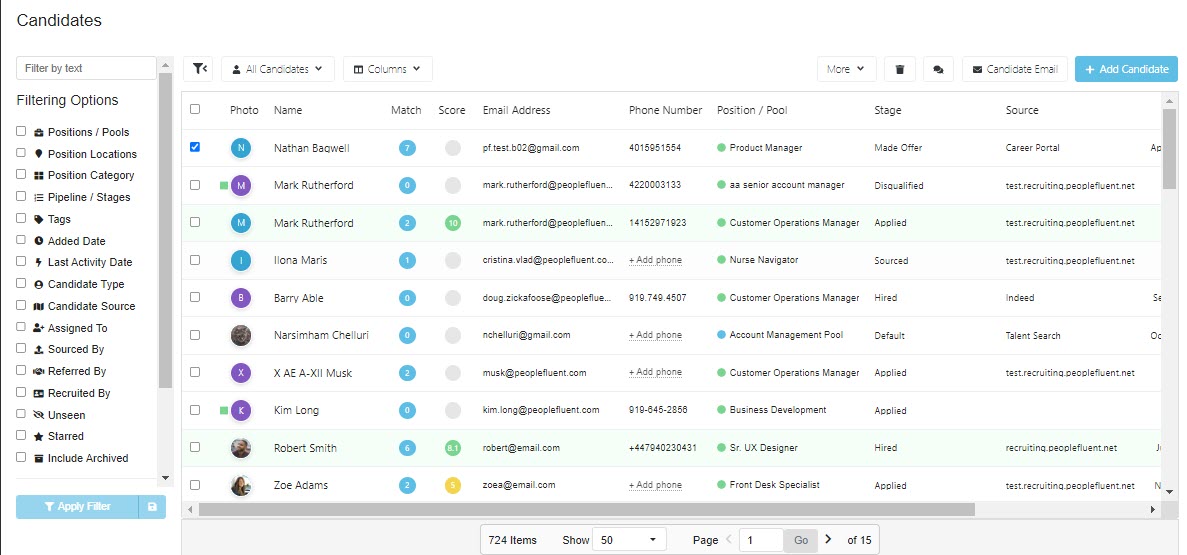
- Candidates are listed within the dashboard. Company admins can view all candidates. Company members can see all candidates for positions for which they are part of the hiring team.
- Internal candidates are indicated by the
 icon to the left of the candidate name.
 - Candidates referred by employees through the employee portal are indicated by the
 icon to the left of the candidate name.
 - The list can be filtered using the standard filter fields or the Filter by Text field. You can hide the filter fields by clicking on the filter button
 above the filters list.
PeopleFluent Recruiting provides robust filtering options and allows you to create custom filters. For information and tips, please see Using the Filtering Options and Creating Custom Filters.
- You can add or remove columns on the dashboard. Click the Columns field and select or clear the check boxes for the columns you would like to add or remove. Note: If a column is grayed out, that means it cannot be removed from the dashboard.
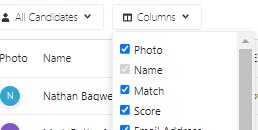
- You can sort the list based on the columns. To do this, click the column header.
- Click a candidate in the list to open the candidate profile.
- There are actions that can be taken on one or more candidates directly from the dashboard. Select the check box for the candidate(s) and then you have the following options:
- Click the More menu and select an action from the options.
- To delete the selected candidates, click the delete button

- To send a team message about the selected candidates, click the message button

- To email the selected candidates, click the Candidate Email button
- You can add a candidate directly from the dashboard by clicking the +Add Candidate button.
